
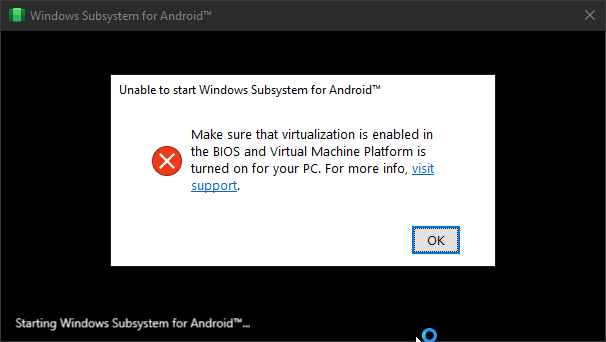
You may encounter this problem, even if Virtualization is enabled on your PC (in the BIOS) and shows up as enabled in Task Manager (as seen below) and Virtual Machine Platform + Windows Hypervisor Platform is Enabled. The solution is:
- Remove WSA: Right clicking on "Windows Subsystem for Android™ Settings" and pressing uninstall + Deleting the extracted WSA (MagiskOnWSA/WSABuilds) folder that you extracted and installed from.
-
Go to "Turn Windows features on and off" and if any of these features below are enabled, DISABLE THEM.
- Hyper-V
- Virtual Machine Platform
- Windows Hypervisor Platform
- Windows Subsystem for Linux
- Restart your PC
-
Boot into your BIOS, and DISABLE Virtualization.
- Ensure that you have Control Flow Guard enabled in Windows Security > Apps & browser control > Exploit protection. This is a known issue that can prevent WSA from starting
-
In registry editor (regedit):
-
Go to
\HKEY_LOCAL_MACHINE\SYSTEM\CurrentControlSet\Services\FsDepends- Change the value of
Startfrom3to0
- Change the value of
-
Go to
HKEY_LOCAL_MACHINE\System\CurrentControlSet\Control\DeviceGuard- Change the value of
EnableVirtualizationBasedSecurityto0 - If you do not have a
EnableVirtualizationBasedSecurityDWORD value, create one by right-clicking and adding a newDWORD (32 bit)value. Rename it toEnableVirtualizationBasedSecurityand make sure that the value is set to0.
- Change the value of
-
- Then in CMD (Run as Adminstrator), paste:
bcdedit /set hypervisorlaunchtype auto
- ENABLE the features that you disabled in
Step 2and restart a second time.
-
Boot into your BIOS, and ENABLE Virtualization.
- Restart the Computer
- Reinstall WSA by running
Run.bat
-
If the steps above still do not fix your issue, go to the AtlasOS configuration folder and run the
Enable Hyper-V and VBSCMD file. Then restart your PC and try running WSA again
